




Card activity: see who made each change and when.
When several people manage corporate cards, understanding what happened to a card should not require messages, searches or manual follow-ups.
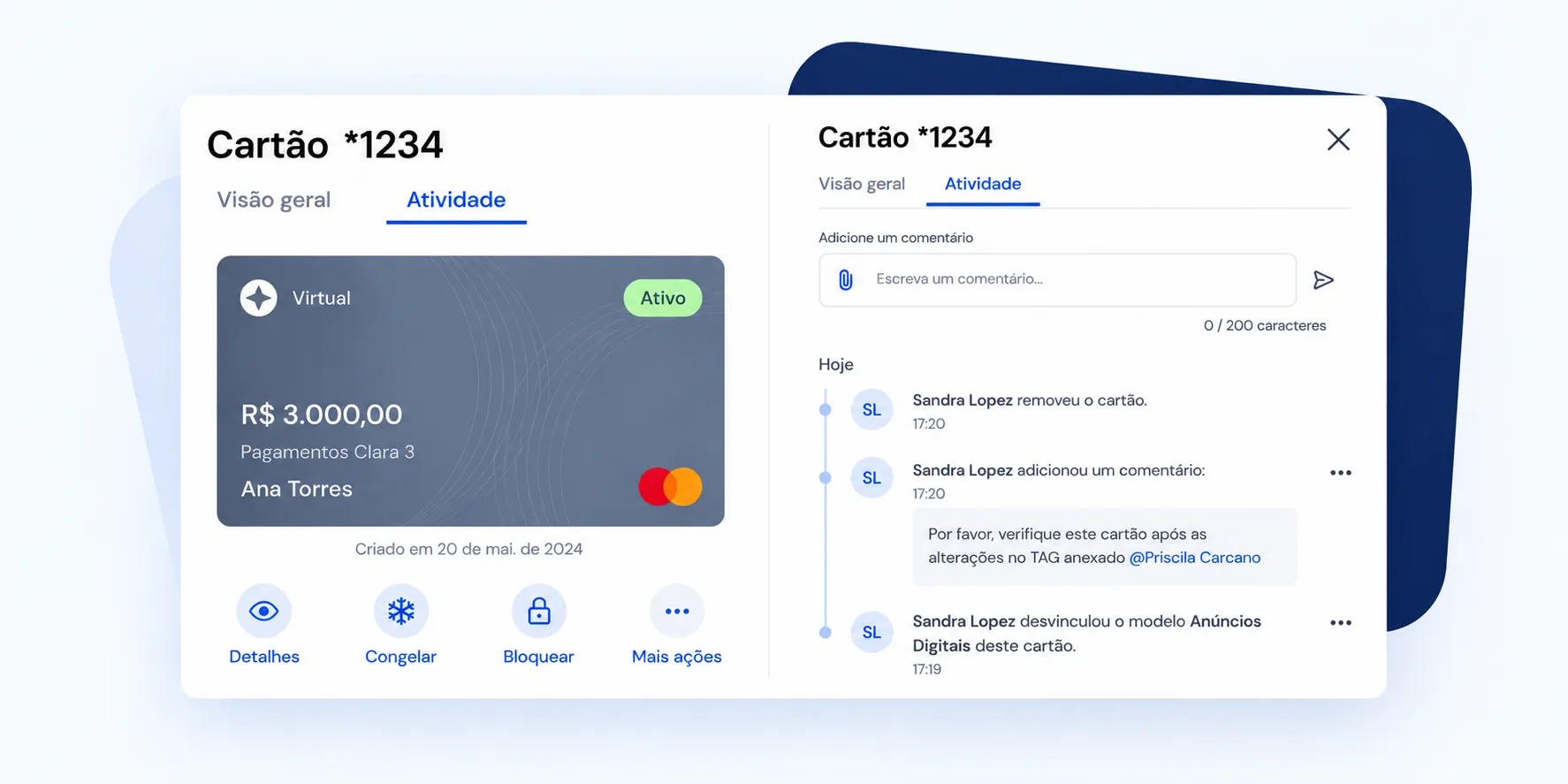
Now, each card in Clara has an Activity section, where you can view the history of actions and changes related to that card in one place.
More traceability for your team. More clarity about what happened to each card.
A card’s complete history in one place
The new Activity section brings together the main actions related to each card in chronological order.
There, you can view events such as:
- Card creation.
- Changes to its settings.
- Change requests.
- Freezing and unfreezing.
- Blocking and unblocking.
- Card deletion.
- Approvals, rejections or cancellations related to a request.
So, instead of piecing together what happened across different users or processes, you have a record of the activity right on the card.
See who made each change
When an action is performed by a person, Clara records who performed the action.
For changes to a card’s settings, you can also identify which information was changed, including the previous and new values.
For example, if someone changes a card setting, you can see who made the change and what was updated.
This makes it easier to track changes and gives Finance and administration teams greater visibility into card management.
Follow the history from the request onward
If a card was created from a request, the Activity section also includes the relevant history of that request.
That way, you can follow the process from when the card was requested, including actions such as approval, rejection or cancellation, through to the changes made after its creation.
A single timeline to understand the card’s full context.
More context for working as a team
The Activity section also lets you add comments related to the card.
Users can:
- Add comments.
- Mention other people with @.
- Attach files.
- Edit or delete their own comments.
That way, important conversations and information about a card can be recorded right where it is managed.
More transparency in managing your cards
With a history available for each card, your team can more easily answer questions such as:
- Who changed this card?
- Which setting was changed?
- When was the card frozen or blocked?
- Who approved a request?
- What happened before the card was created?
Less manual follow-up and more information available directly in Clara.
Frequently asked questions
Where can I view a card’s activity?
Open the card you want to check and go to the Activity section. There you will find the history of actions recorded for that card.
Can I see who changed a card?
Yes. When an action is performed by a user, the history shows who was responsible for it.
Can I see exactly what changed?
Yes. For recorded settings changes, you can see which information was changed, as well as the previous and new values.
Can I also view the history of a card request?
Yes. When a card is created from a request, relevant activities from that request also appear in the card’s history.
Can I leave comments in the Activity section?
Yes. You can add comments, mention other people and attach files. You can also edit or delete comments you created.
Want to know how to view a card’s activity?
See our step-by-step guide to identifying who made changes to a card and viewing its activity history.
How to check who changed a card
Availability
🇧🇷 Brazil | 🇲🇽 Mexico | 🇨🇴 Colombia
The feature is available on Clara’s web platform.
Check your cards’ activity and get the context you need to understand each change, directly in Clara.