



Policy Agent: your expense policy, checked against every card transaction
Every company has an expense policy. Few have a way to check card spending against it without reading transactions one by one. The Policy Agent does that part: it turns your policy into rules, reviews every new card transaction and shows which ones may need attention, along with the reason.
The policy that lives in a PDF
Most expense policies are written once, shared once and forgotten. The review comes later, by hand, when someone in finance finds the time. By then, the expense is weeks old and the person who made it is already on the next trip.
What the Policy Agent does
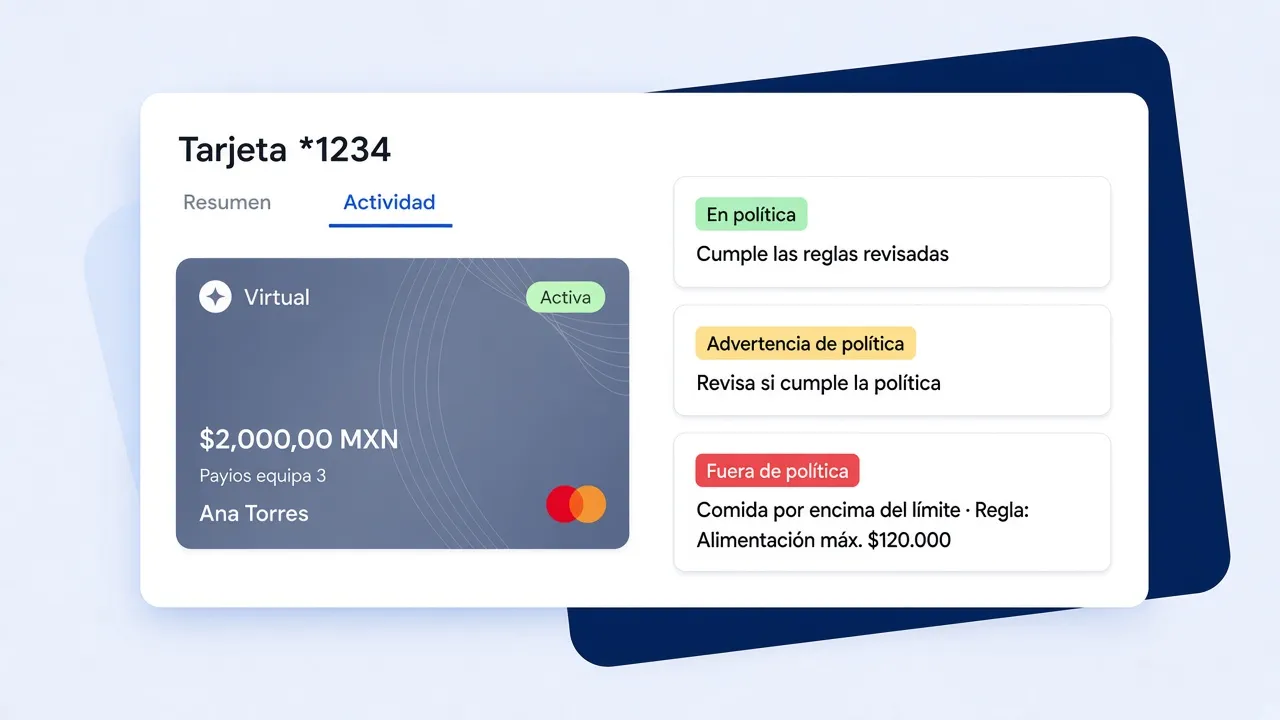
Upload your policy as a PDF or DOCX, or let Clara generate a first version for your team to edit and approve. Clara extracts the rules; you review and activate them. From then on, every new card transaction may receive a policy alert, with the rule and the reason:
- Policy alert. Requires review to confirm whether it complies with the policy.
- Outside the policy. It appears to violate one or more rules.
It can detect a meal above the limit, a hotel rate above the maximum, a purchase category your policy does not allow or an expense recorded in the wrong category.
Set it up in three steps
- Activate Requirements. The Policy Agent needs them to work.
- Upload your policy or generate one. PDF or DOCX.
- Review the rules and activate. Settings → Policies → Policy Agent → Card transactions.
Administrators can set it up. The Policy Agent reviews transactions made after it is activated; it is not retroactive.
Requirements must be active
Requirements must be active for the Policy Agent to work. This is the first step in setup.
You have the final say
The Policy Agent flags transactions; it never approves or rejects them. Administrators and accountants can change any status, and every change is recorded in Activity. Too many alerts at first? It almost always points to unclear wording in the policy. Adjust the document, upload it again and review the new rules.
Where you see the results
- In Transactions, using the “Company policy” filter
- In the AI-enriched CSV, in a Policy Agent column (Pro and Enterprise)
- By email when a transaction is outside the policy, plus a weekly summary
- In the mobile app, in read-only mode