
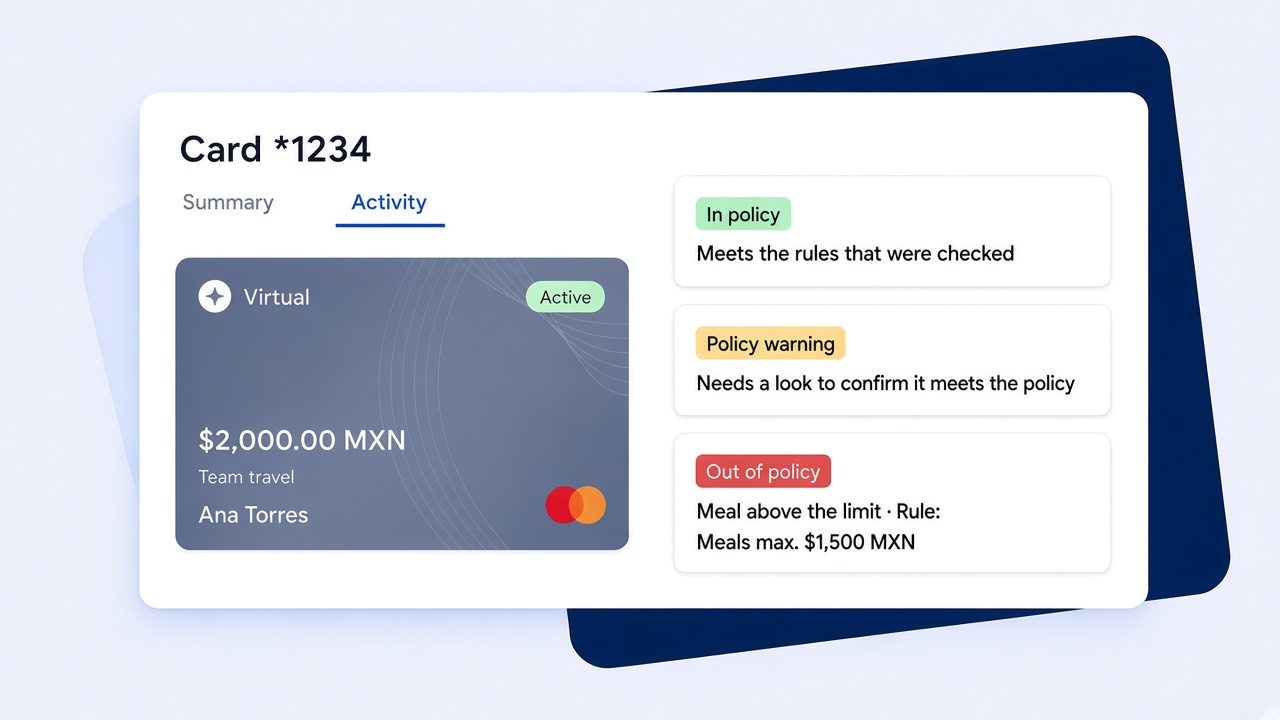
Every company has an expense policy. Few have a way to check card spending against it without reading transactions one by one. Policy Agent does that part: it turns your policy into rules, checks each new card transaction and shows which ones may need a look, with the reason.
Most expense policies are written once, shared once and then forgotten. The check happens later, by hand, when someone in finance finds the time. By then the spend is weeks old and the person who made it is on to the next trip.
Upload your policy as a PDF or DOCX, or let Clara generate a first version for your team to edit and approve. Clara extracts the rules, you review them and activate. From then on, each new card transaction gets one of three statuses, with the rule and the reason behind it:
It can catch a meal above the limit, a hotel rate above the maximum, a purchase category your policy doesn't allow, or spend logged under the wrong category.
Admins can set it up. Policy Agent checks transactions made after you activate it; it doesn't go back in time.
Requirements must be on for Policy Agent to work. It's step one of the setup.
Policy Agent flags; it never approves or rejects. Admins and accountants can change any status, and every change is logged in Activity. Seeing a lot of flags at first? It usually points to unclear wording in the policy. Tighten the document, upload it again and review the new rules.